WhatsApp for Customer Service
Transform WhatsApp into your support channel
Install Free Chrome ExtensionWhy Use WhatsApp for Customer Service?
WhatsApp is now one of the most popular messaging apps all over the world. With its growing number of users, it will be beneficial for businesses to take advantage of this app as an additional channel for customer service and engagement.
But things might be a bit difficult if done manually. In this guide, we will show you how to efficiently do customer service on WhatsApp using WaWebM.
Feature #1: Sending Customized Messages To Customers
Keeping up with your customer base can be a pain if done manually, but with WaWebM's ability to customize and automate messages to your customers can help you save hours. In just a few clicks, you can send announcements, greetings, and business notifications with ease.
Install WaWebM Chrome Extension
Go to WaWebM and install the Chrome extension from the Chrome Web Store.
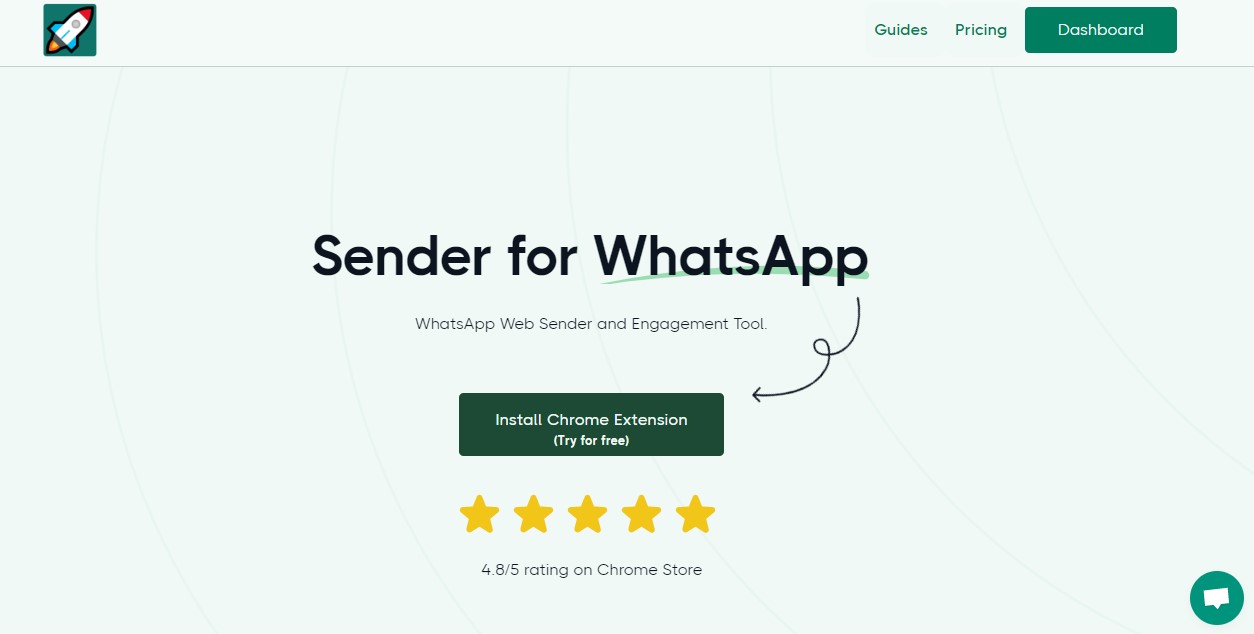
Screenshot showing how to download the WaWebM extension.
Open WhatsApp Web and Use the Sender
Head to your WhatsApp Web, and the WaWebM pane will appear. Simply key in the phone numbers you wish to send the message to, type in the message and voila!
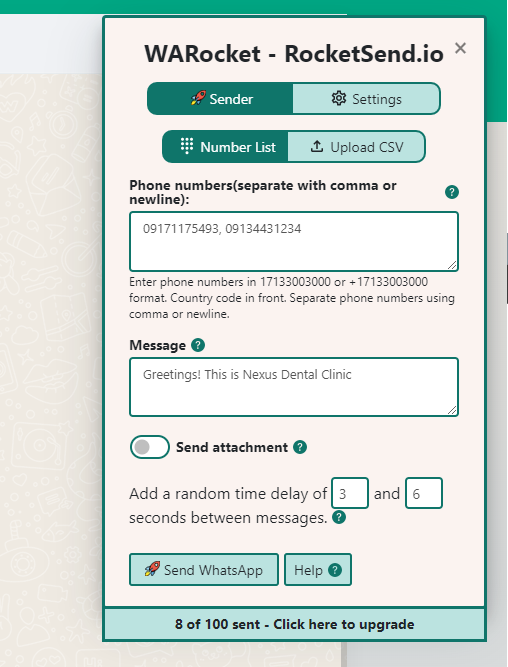
Screenshot of WaWebM sender messages interface.
Attach Files and Documents
You can also attach files and documents to your messages for sharing important information with customers.
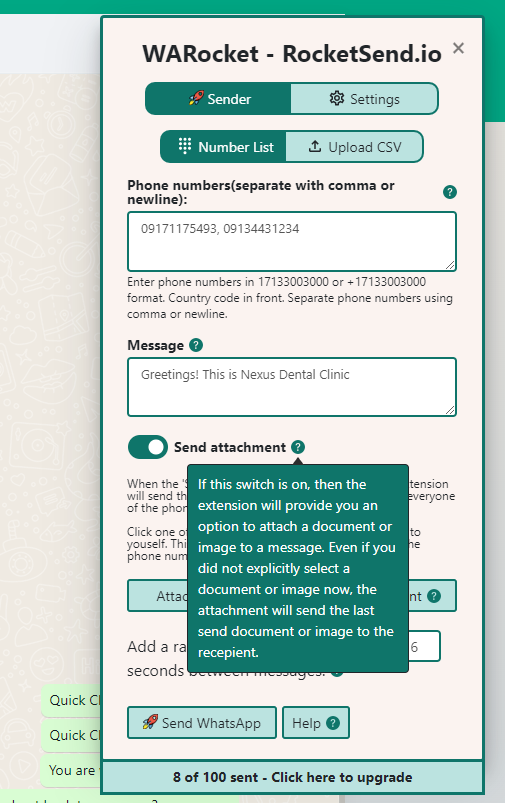
Screenshot showing the attachment option for files and documents.
Send Messages from CSV Files
Furthermore, you can send messages directly from Excel Sheets in CSV format. Save the numbers and names of your customers, upload the CSV file to WaWebM pane and send the messages quickly with personalized variables.
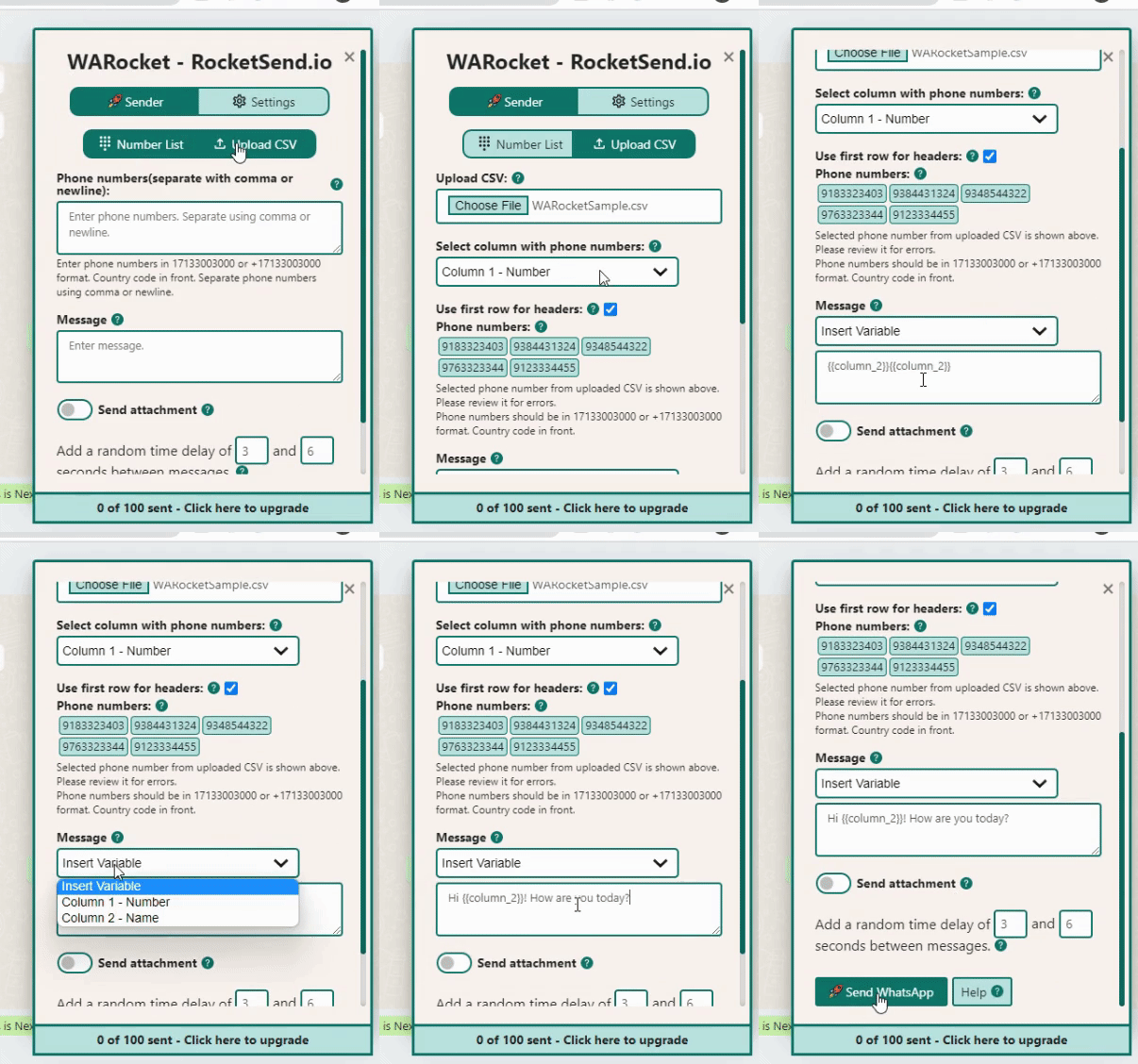
GIF showing how to use variables for personalized messages.
Feature #2: Quickly Reply With Quick Chats
Manually typing everything can be tedious, but WaWebM's Quick Chat is here to help you out! With Quick Chats, you just have to click the button and send the message right away, without touching a single key on your keyboard.
Pre-filled Quick Chats
Upon installation of WaWebM Chrome Extension, there will be 3 pre-filled Quick Chats for your convenience. But of course, you can also save your own customized Quick Chats based on your needs.
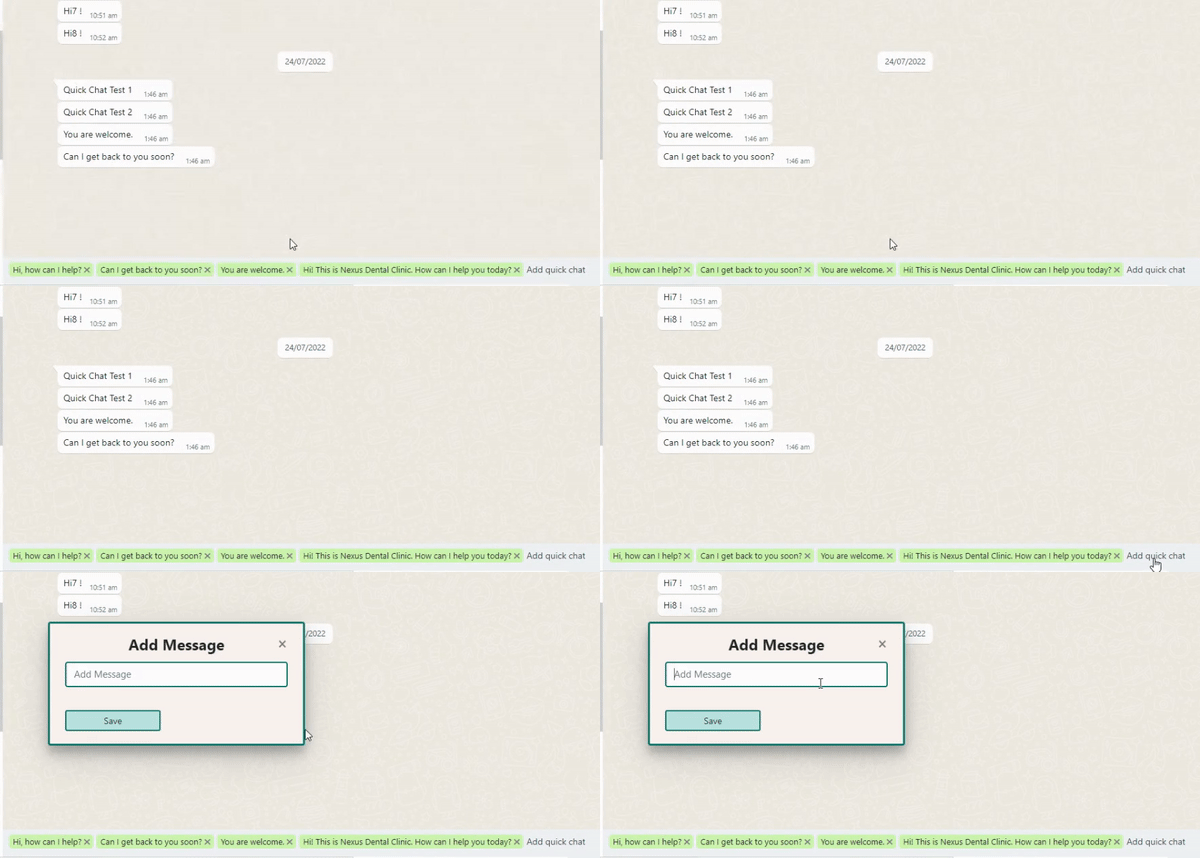
GIF showing Quick Chat buttons in action.
Add Your Own Quick Chats
Simply click the Add Quick Chat link on top of your WhatsApp message box. Add your customized Quick Chat and click Save.
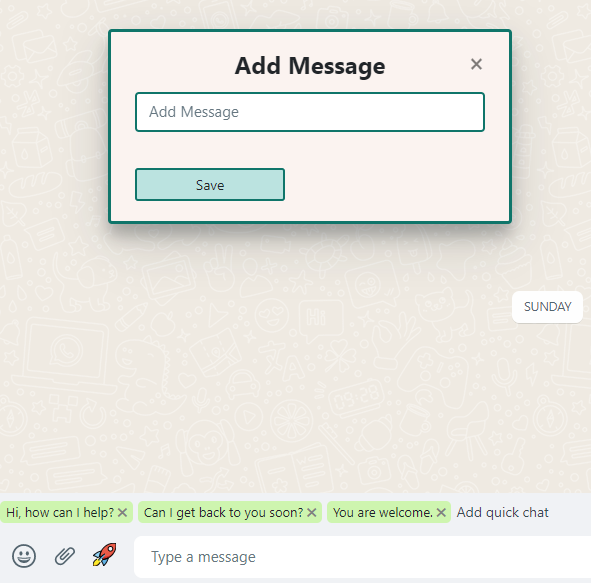
Screenshot showing the Add Quick Chat option.
Manage Your Quick Chats
You can also delete a Quick Chat if you wish to keep your list clean. Just click the X button beside the Quick Chat button.

Screenshot showing how to manage Quick Chats.
Feature #3: Highlighting Unread Messages
When swamped with a lot of things, one can miss new messages. This will ultimately affect response time and may affect overall consumer satisfaction. Using the Highlight Unread Messages feature of WaWebM, you can never miss a new message.
Enable Highlight Unread
To enable this, click the Star Icon on the left side panel of your WhatsApp Web, and enable the Highlight unread toggle button. With this simple yet useful feature, you can make sure that all customer inquiries and feedback will have the fastest response time possible.
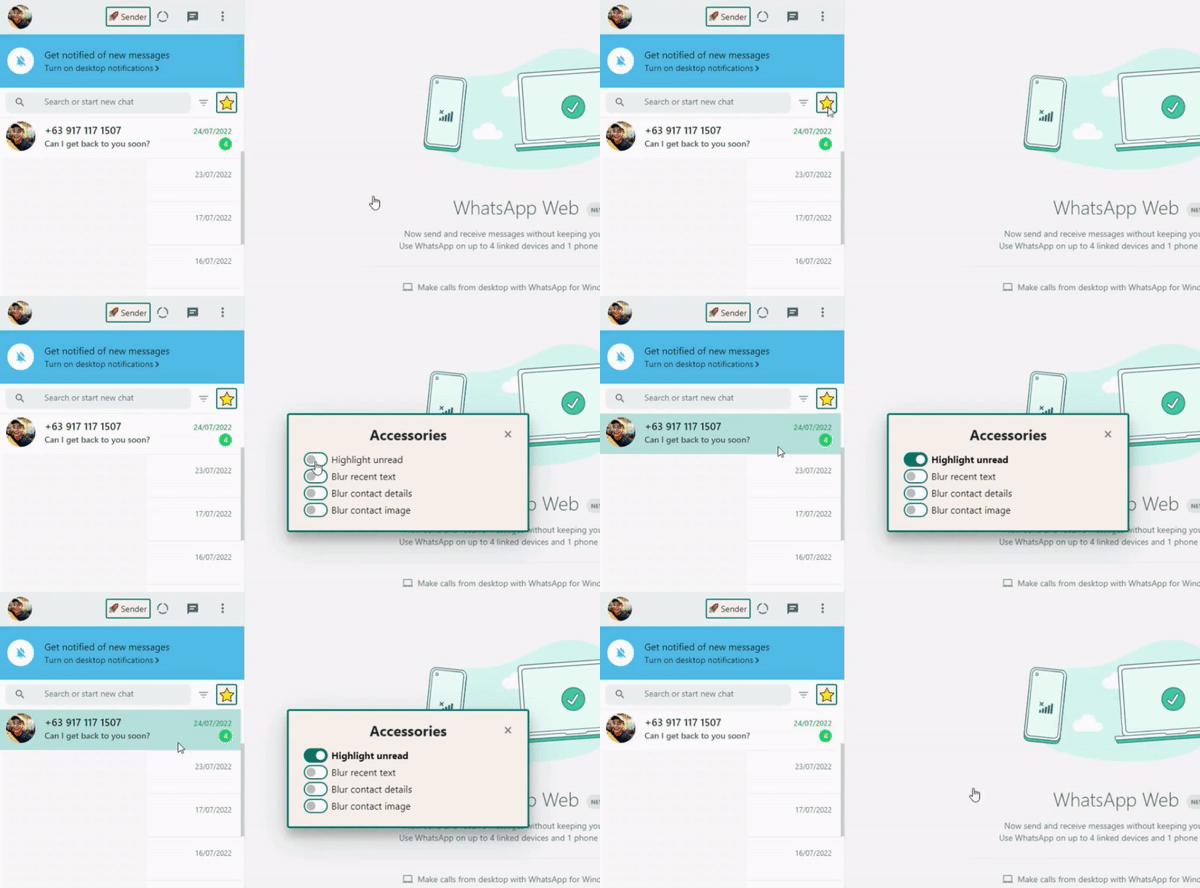
GIF showing how to enable the Highlight Unread Messages feature.
Why Use This Feature?
Provide instant customer support on the platform they already use. Faster response times, higher satisfaction.
Instant Support
Real-time responses to customer queries.
Quick Replies
Save common answers as templates for fast responses.
Rich Media
Share images, PDFs, and videos directly in chat.
Chat History
Keep permanent records of all conversations.
Complete WhatsApp Messaging Features
Experience the most comprehensive AI-powered WhatsApp messaging solution with enterprise-grade features and intuitive design
AI Message Rewrite
Transform your messages with AI-powered rewrite technology. Choose from professional, friendly, urgent, or casual tones to optimize engagement with WaWebM's advanced AI.
AI Content Generation
Generate compelling messages from simple prompts using WaWebM's AI content assistant. Create professional, engaging content in seconds.
CSV Contact Upload
Upload your contact list from Excel or CSV files and send personalized messages to thousands of contacts simultaneously with WaWebM's advanced messaging capabilities.
Message Personalization
Customize messages with recipient names, company information, and any custom fields from your contact list using WaWebM's personalization engine.
Quick Chat Snippets
Save and quickly access your most commonly used messages with WaWebM's advanced snippet system for improved efficiency.
Privacy Protection
Keep your messages private with blur view, unread message highlights, and other privacy features built into WaWebM for enhanced security.
Send Without Adding Contact
Send WhatsApp messages to any phone number without saving it to your contacts first. Perfect for one-time messages and customer support.
Attachment Sending
Send images, PDFs, documents, and other files to multiple contacts at once. Great for sending catalogs, invoices, or promotional materials.
Chrome Extension
Works seamlessly with WhatsApp Web as a Chrome extension. No separate app or login required - everything works right in your browser.
Conclusion
Customer service doesn't need to be slow and painful. With WaWebM's rich messaging features, you can efficiently keep up with your customers' concerns, feedback and messages.
Curious about what other things WaWebM can do? Check out our guide articles for more tips and features.