Send WhatsApp from Excel/CSV
Learn how to send customized engagement messages in WhatsApp directly with a CSV or Excel file. Upload your spreadsheet and reach hundreds of contacts with personalized messages.
Install Free Chrome ExtensionHow to Send WhatsApp Messages from a CSV File
In order to send WhatsApp messages directly from a CSV file, you need to have the WaWebM Chrome extension installed. After adding the extension to your Chrome browser, head to WhatsApp Web and the WaWebM pane will appear on the upper right corner of the page.
Create Your Spreadsheet
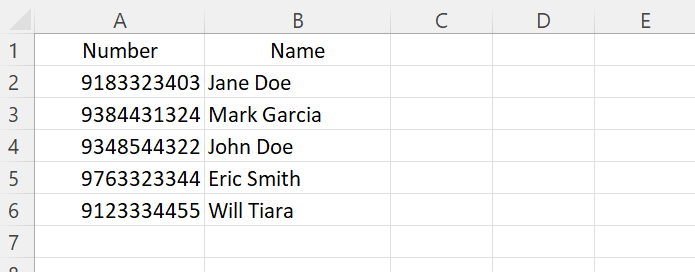
Create a sheet file via Excel, Google Sheets, or any editor. Create columns for phone numbers and names. Fill out the details, and don't forget the country code of the numbers you're sending to. You can also add any custom fields you want to use as message variables.
Save as CSV Format
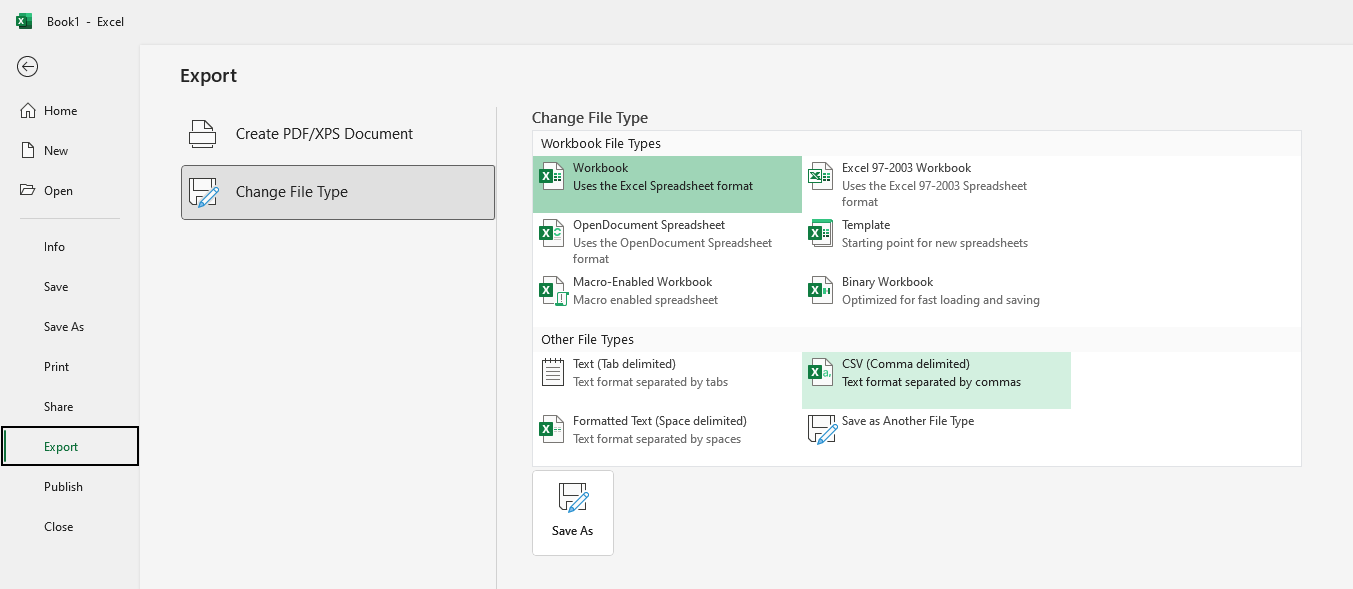
Once done with your spreadsheet, save the file as CSV format. In Excel, go to File → Save As and select "CSV (Comma delimited)" from the format dropdown.
Upload CSV to WaWebM
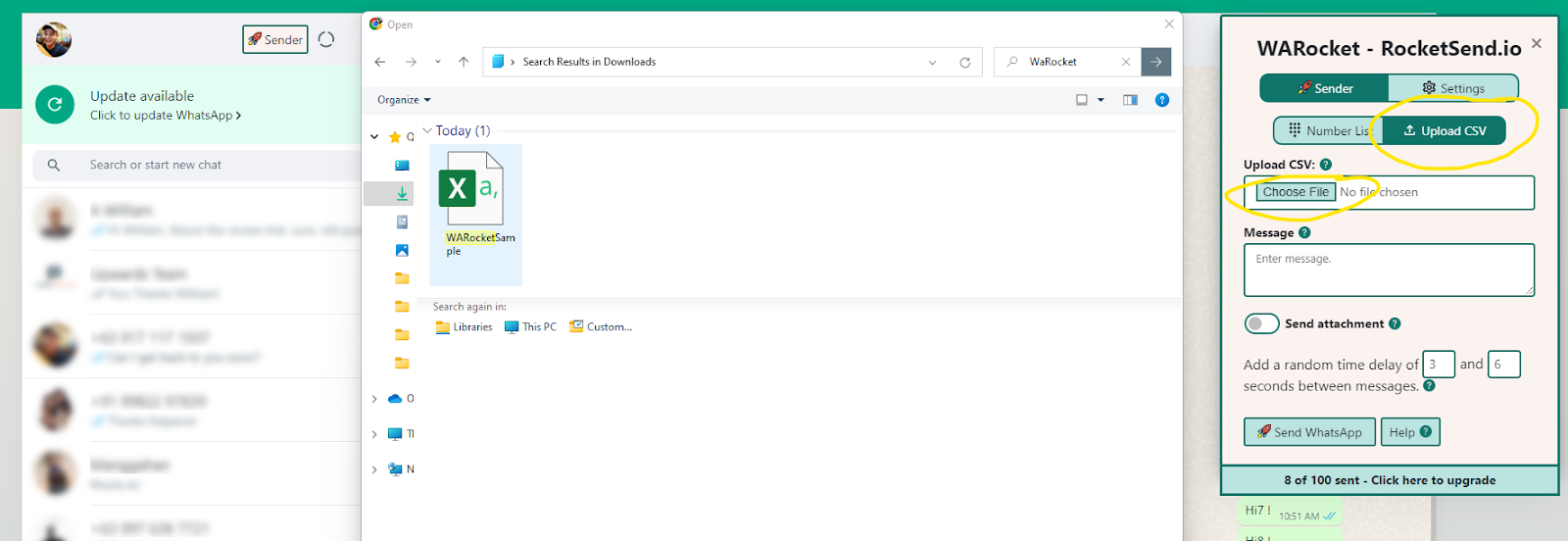
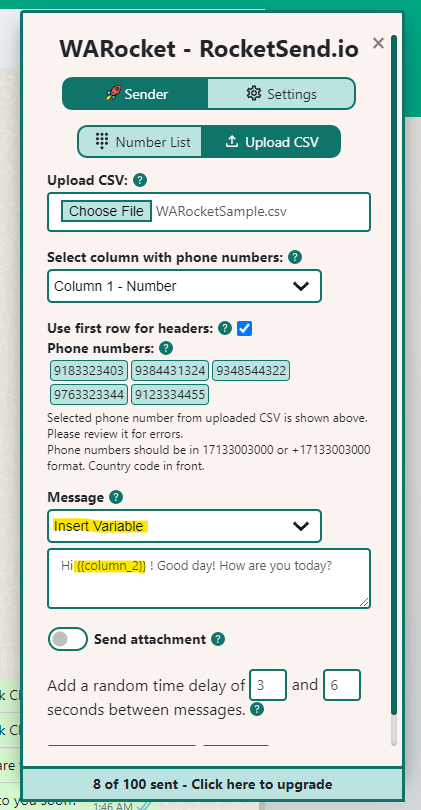
On the WaWebM pane in WhatsApp Web, click the "Upload CSV" button and choose the file you created.
Map Phone Number Field
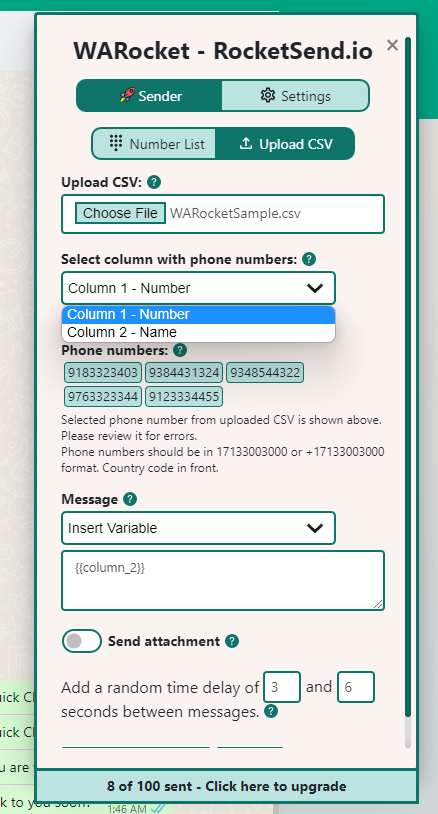
Map the phone number to the corresponding field/column in your file. This tells WaWebM which column contains the recipient phone numbers.
Customize Your Message with Variables
You can use columns as message variables to make each message customized and distinct per customer. Click the "Insert Variable" dropdown and select the column you want to insert. The inserted column appears in curly braces like {{column_name}}.
Send Your Messages
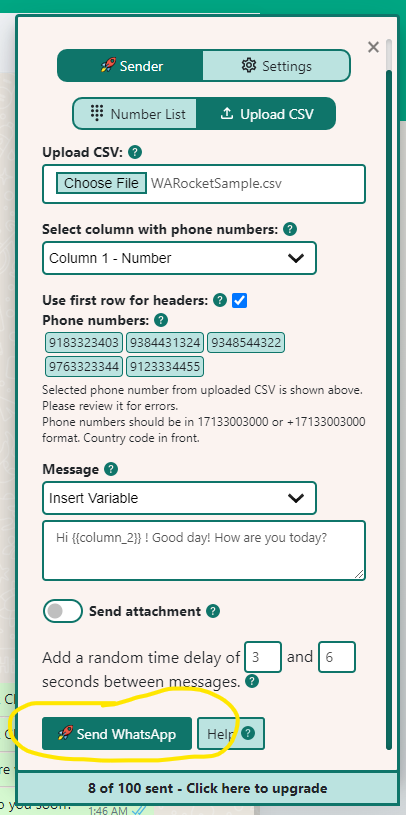
Once everything is set up, click "Send WhatsApp" to start sending your personalized messages. The tool will automatically send messages with delays to keep your account safe.
Well done! You have successfully sent your personalized messages directly from a CSV file.
What is a CSV File?
A CSV (Comma Separated Values) file is a type of plain text file that contains data separated by commas. It is a simple and widely used format for storing and exchanging data between different applications. A CSV file can be opened with a spreadsheet program like Microsoft Excel, Google Sheets, Apple Numbers or just plain notepad. You can use a CSV file to store a list of phone numbers and messages that you want to send via WhatsApp.
Direct Upload
Import contacts directly from Excel, Google Sheets, Apple Numbers, or plain CSV files.
Personalization
Use {{name}}, {{company}}, or any column as variables to customize each message for every recipient.
Smart Delays
Automatic delays between messages to maintain account safety and avoid spam detection.
Track Results
Monitor delivery status for each contact and ensure all messages are sent correctly.
Best Practices for Sending WhatsApp Messages from a CSV File
Here are some best practices to follow when sending WhatsApp messages from a CSV file to ensure success and maintain your account safety.
Use a Verified Account
To avoid getting banned by WhatsApp, make sure to use a verified WhatsApp account to send messages from a CSV file. A verified account is one that has been registered with a valid phone number and has been approved by WhatsApp.
Avoid Sending Spam
Sending unsolicited messages or messages that are not relevant to the recipients can be considered spam and can result in your account being banned. Make sure that you have the recipients' consent to send them messages.
Personalize the Messages
Personalized messages are more likely to be read and responded to than generic messages. Use the recipient's name and tailor the message to their interests or needs using variables.
Test Before Sending
Before sending messages to a large group of people, test the software by sending messages to a small group of test recipients. This will help you identify any issues and ensure messages are sent correctly.
Monitor the Sending Process
Make sure to monitor the progress of the message sending to ensure all messages are being sent correctly and there are no errors or issues with the delivery.
Be Mindful of Timing
Sending messages at the wrong time can result in lower response rates. Make sure to send messages at a time that is convenient for the recipients and when they are most likely to be available.
Complete WhatsApp Messaging Features
Experience the most comprehensive AI-powered WhatsApp messaging solution with enterprise-grade features and intuitive design
AI Message Rewrite
Transform your messages with AI-powered rewrite technology. Choose from professional, friendly, urgent, or casual tones to optimize engagement with WaWebM's advanced AI.
AI Content Generation
Generate compelling messages from simple prompts using WaWebM's AI content assistant. Create professional, engaging content in seconds.
CSV Contact Upload
Upload your contact list from Excel or CSV files and send personalized messages to thousands of contacts simultaneously with WaWebM's advanced messaging capabilities.
Message Personalization
Customize messages with recipient names, company information, and any custom fields from your contact list using WaWebM's personalization engine.
Quick Chat Snippets
Save and quickly access your most commonly used messages with WaWebM's advanced snippet system for improved efficiency.
Privacy Protection
Keep your messages private with blur view, unread message highlights, and other privacy features built into WaWebM for enhanced security.
Send Without Adding Contact
Send WhatsApp messages to any phone number without saving it to your contacts first. Perfect for one-time messages and customer support.
Attachment Sending
Send images, PDFs, documents, and other files to multiple contacts at once. Great for sending catalogs, invoices, or promotional materials.
Chrome Extension
Works seamlessly with WhatsApp Web as a Chrome extension. No separate app or login required - everything works right in your browser.
Conclusion
Sending WhatsApp messages from a CSV file is a convenient way to send messages to a large group of people. By following these simple steps and best practices, you can quickly and easily send messages to your friends, family, or customers.
However, it is important to be mindful of the recipients' preferences and avoid sending spam or irrelevant messages. With the right software and approach, sending WhatsApp messages from a CSV file can save you time and effort while maintaining a personalized touch.
WaWebM makes it easy to upload your Excel or CSV file and send customized messages to hundreds of contacts at once, with automatic delays to keep your account safe.