Fix 'Invalid Phone Number URL' Error
Troubleshoot WhatsApp link and number errors
Install Free Chrome ExtensionBefore Continuing, Check This First
Are you experiencing the error message "Phone Number shared via URL is invalid"? Before proceeding with the workaround, make sure of the following:
Check Number Format
Confirm that you have typed the phone number correctly and included the country code (e.g., +1 for US).
Verify Account
Verify that the phone number has a WhatsApp account. If it doesn't, this error may still occur.
Note: This error message appears in different languages:
• Portuguese: 'O número de telefone compartilhado através de url é inválido.'
• Spanish: 'El número de teléfono compartido a través de la dirección URL es inválido'
• Indonesian: 'Nomor telepon yang dibagikan melalui URL tidak valid'
Main Method: Workaround Through Google Contacts
If you already validated that the number is in correct format and is registered in WhatsApp but the issue is still persisting, here is the workaround.
This issue happens because WhatsApp is not allowing you to send messages to people who are not in your contact list. The solution works by uploading your contact list to Google Contacts, which will then be synced to WhatsApp.
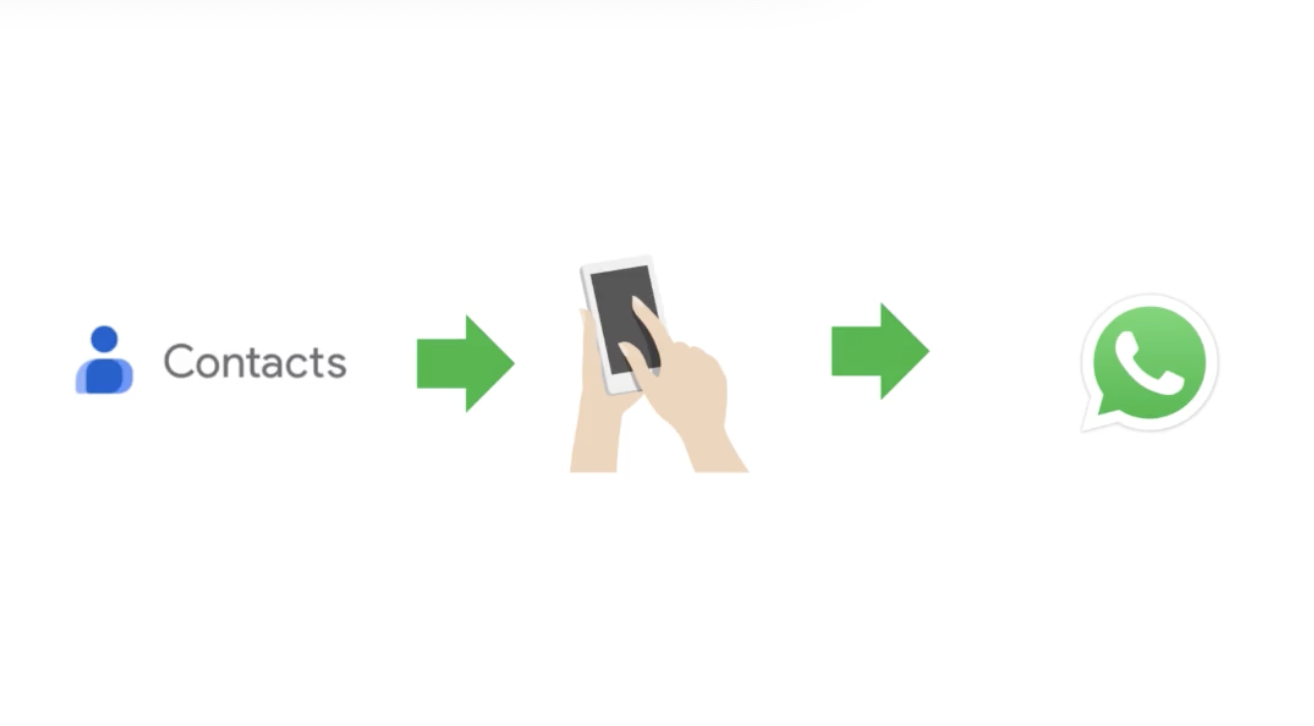
This summarizes the method: You add users to contacts, then sync with WhatsApp.
Step-by-Step Guide
Create Contact List in CSV Format
Create a CSV file with all your contacts. You can use Microsoft Excel or Google Sheets. Go to sheets.google.com and create a blank spreadsheet.
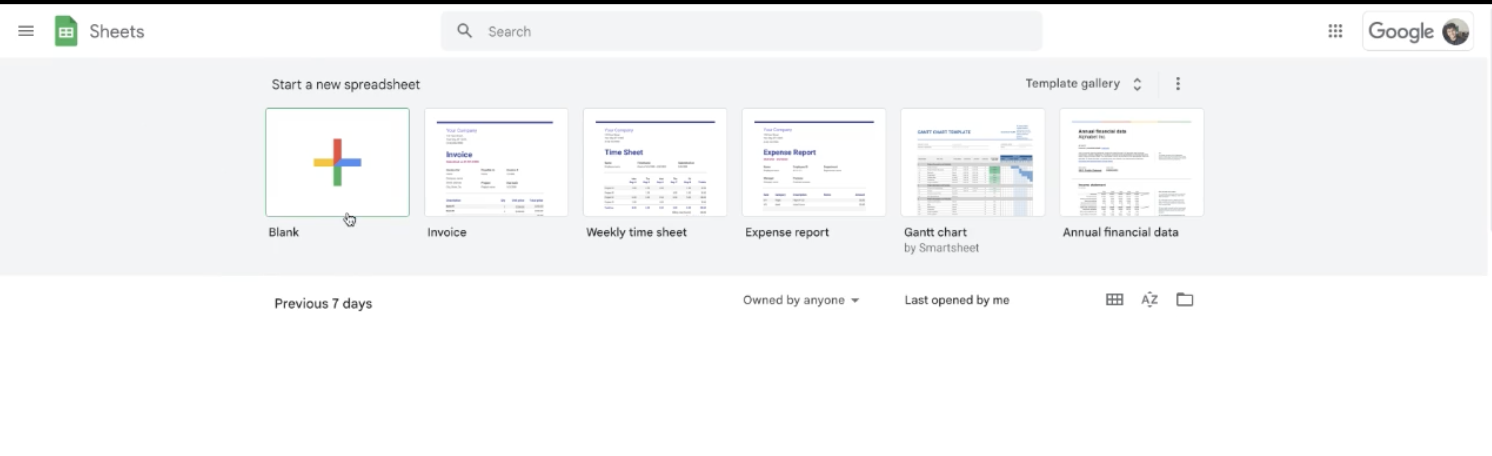
Screenshot showing Google Sheets where you can create a new spreadsheet.
Create columns "Name" and "Phone". Make sure the column names are exactly 'Name' and 'Phone' - this is important.
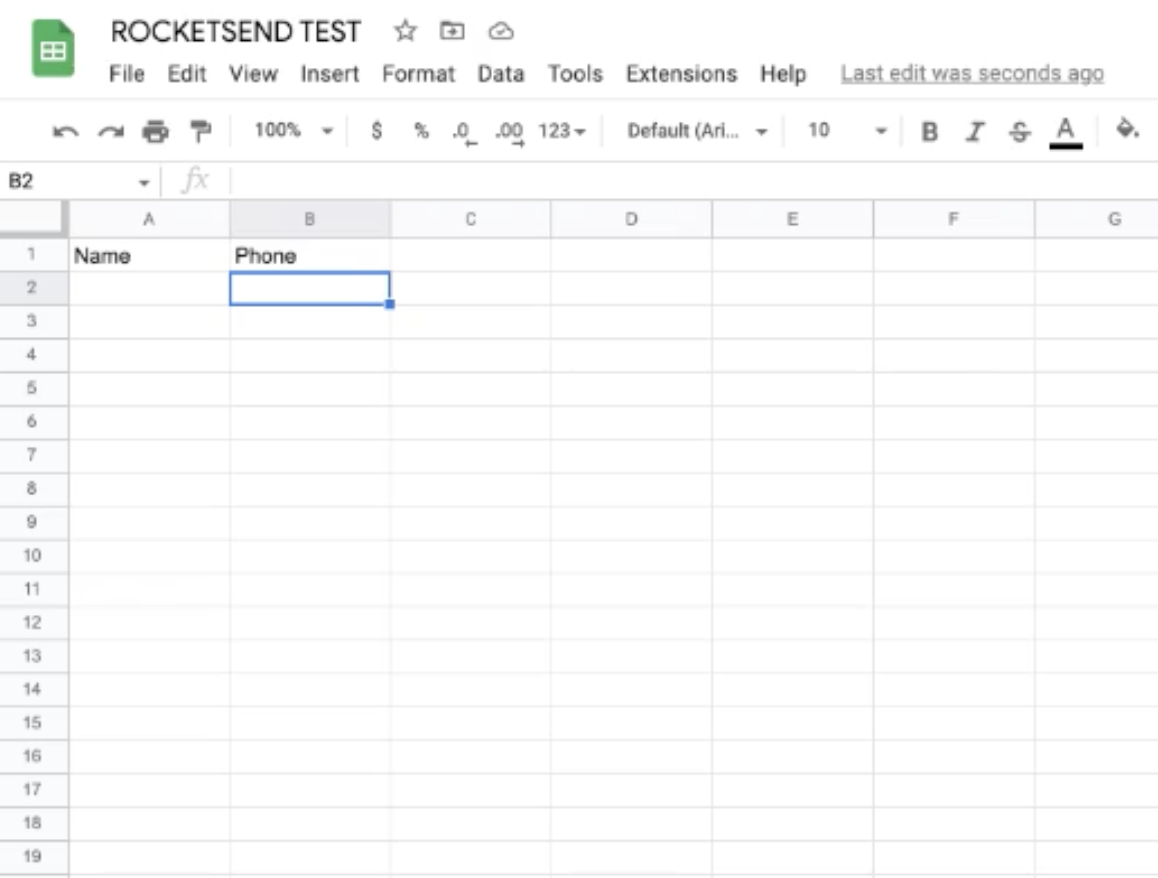
Screenshot showing a sample sheet with Name and Phone columns.
Key in your contact list. Make sure to include the country code with a + in front (e.g., +1 for US, +44 for UK).
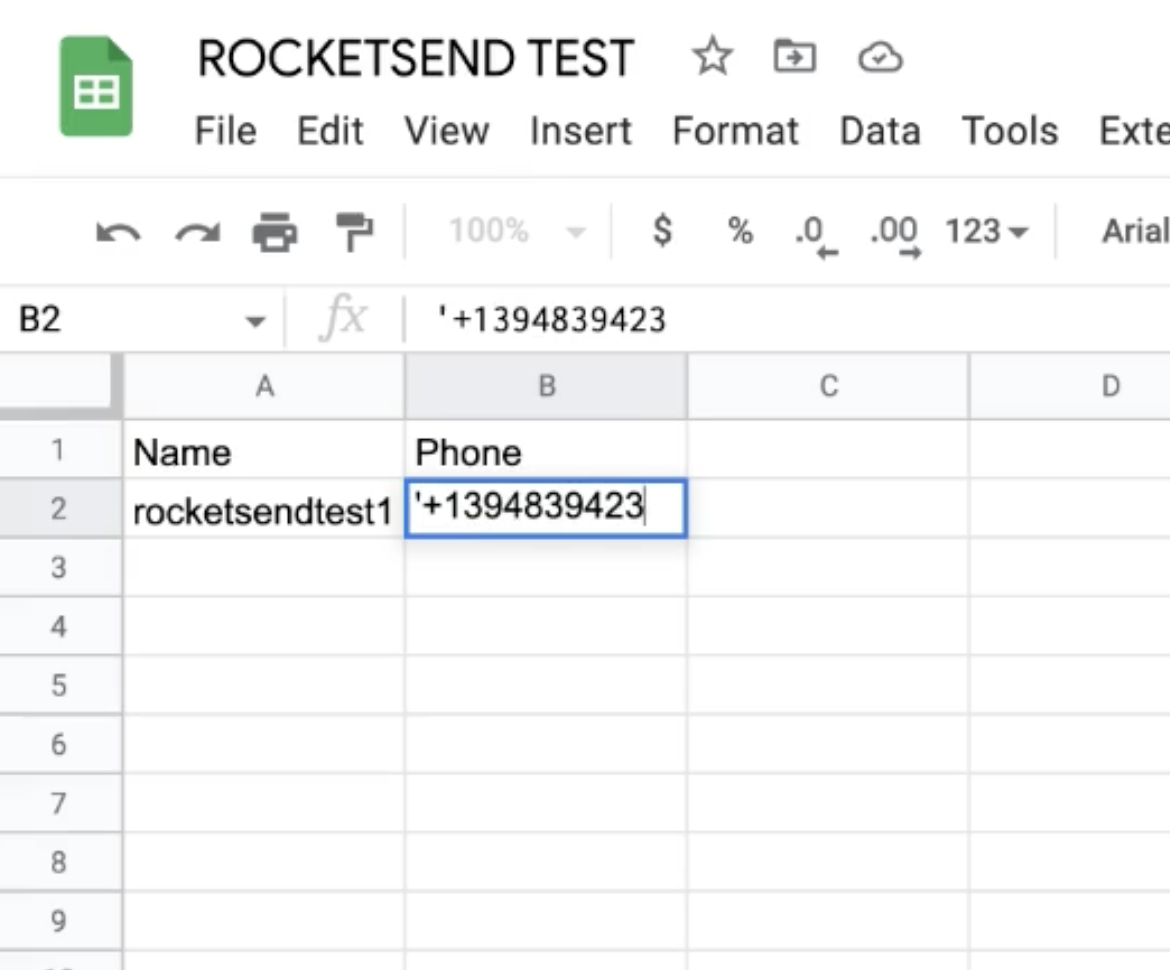
Screenshot showing sample entries with the + sign for country codes.
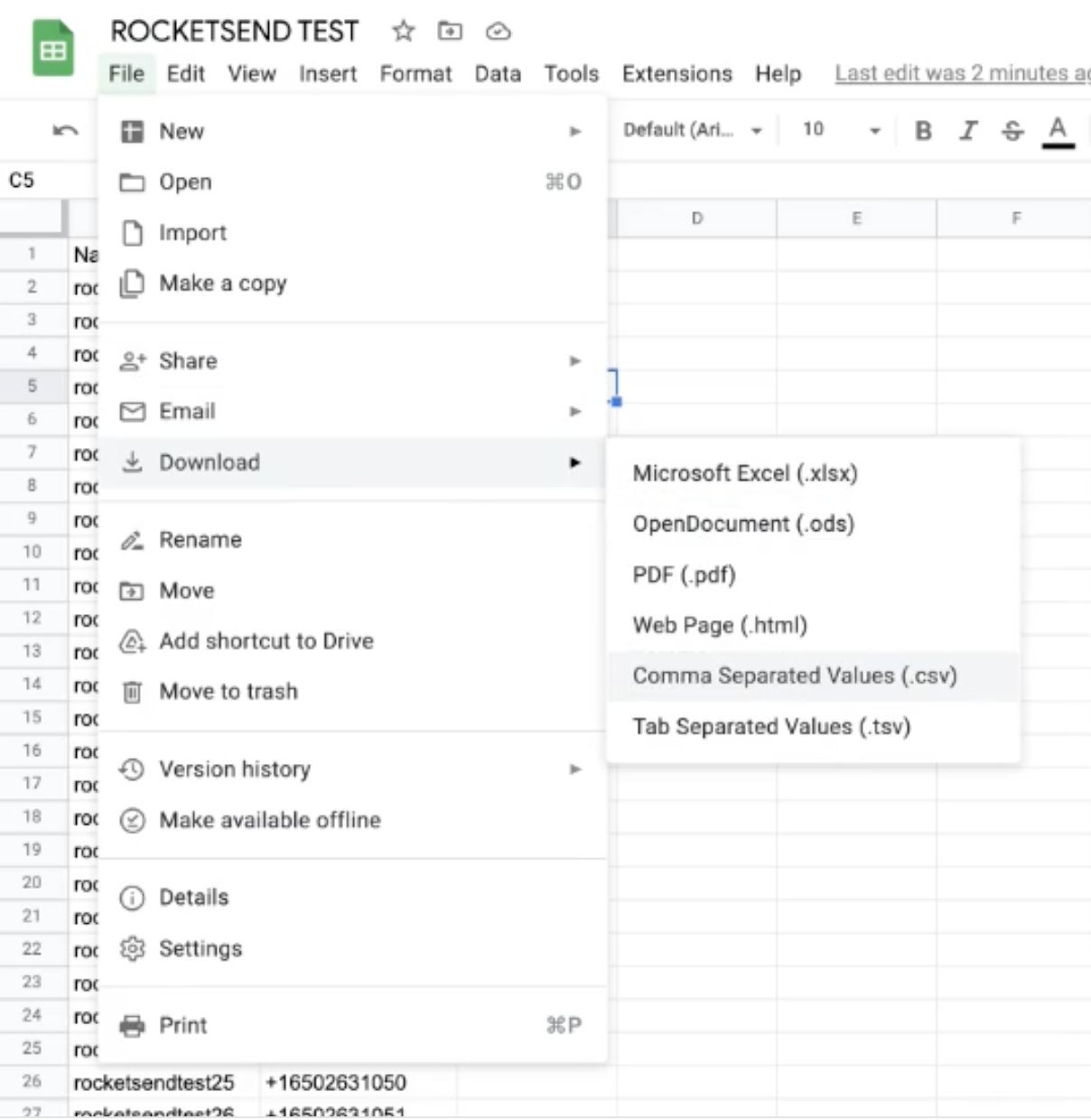
After creating the list, save as CSV: Go to File > Download > Comma Separated Values (.csv).
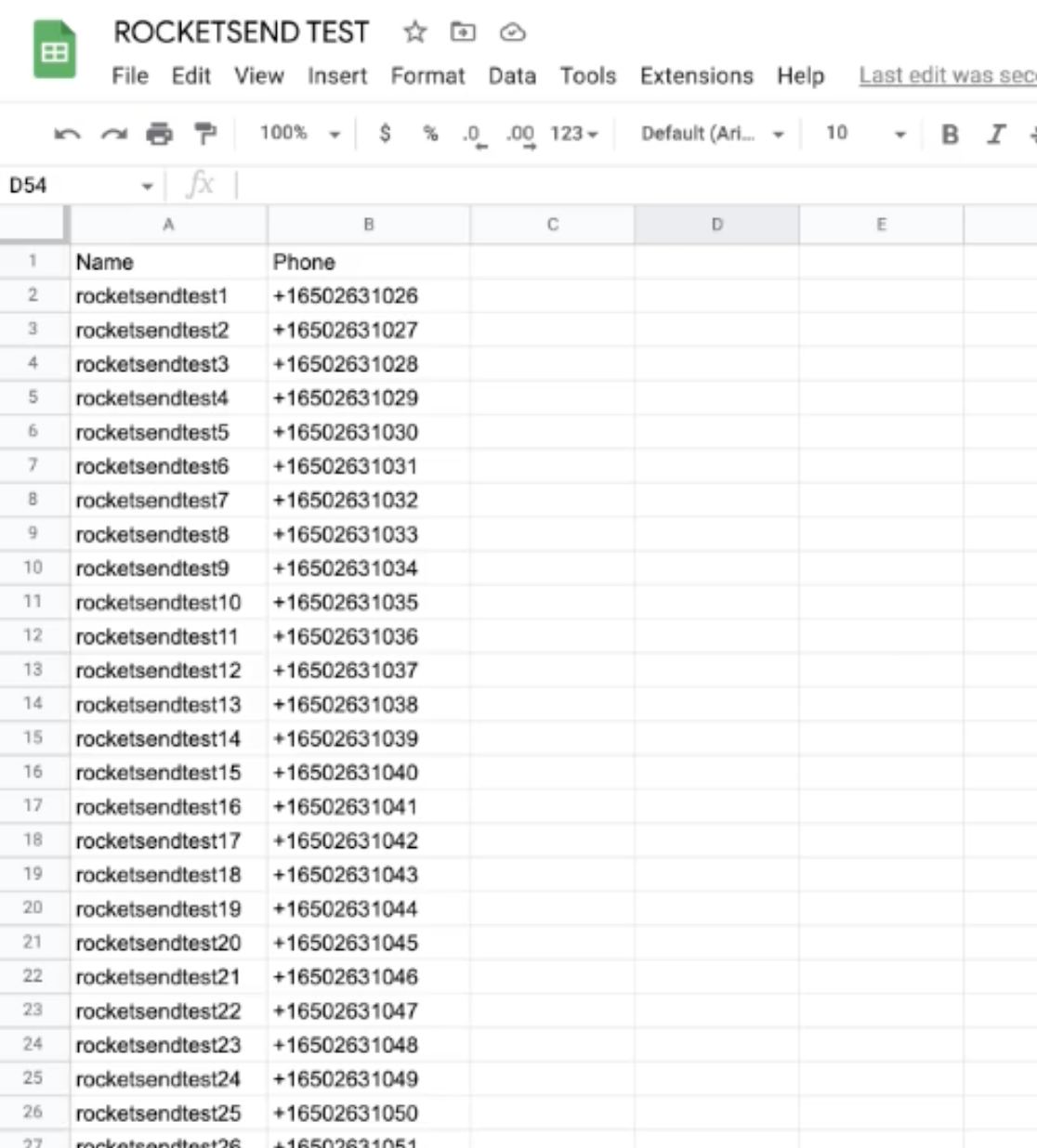
Screenshot showing how to download the sheet as CSV.
Upload The Contact List In Google Contacts
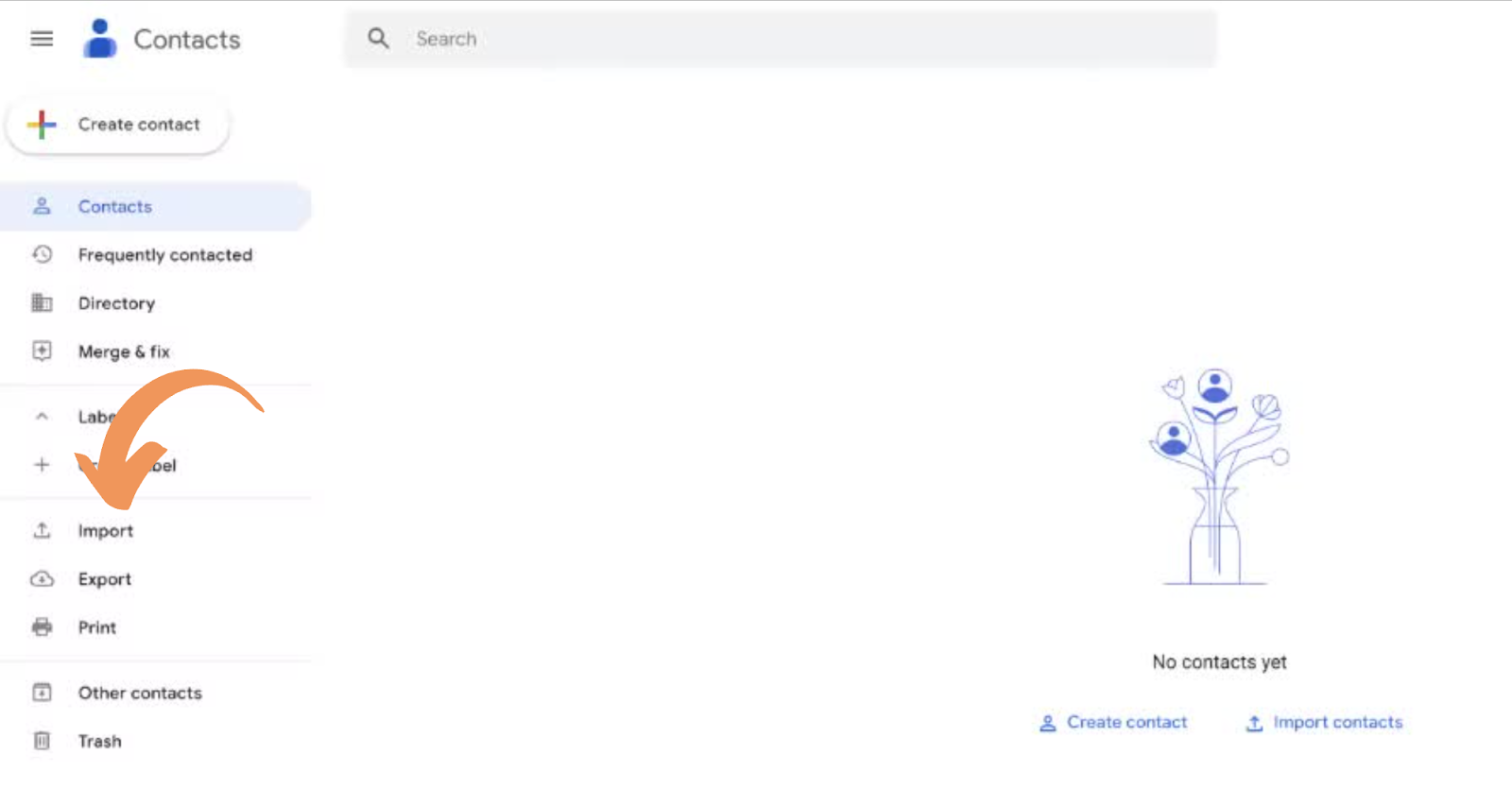
Head to contacts.google.com and click the Import button on the left side of the page.
Screenshot showing where you can import contacts.
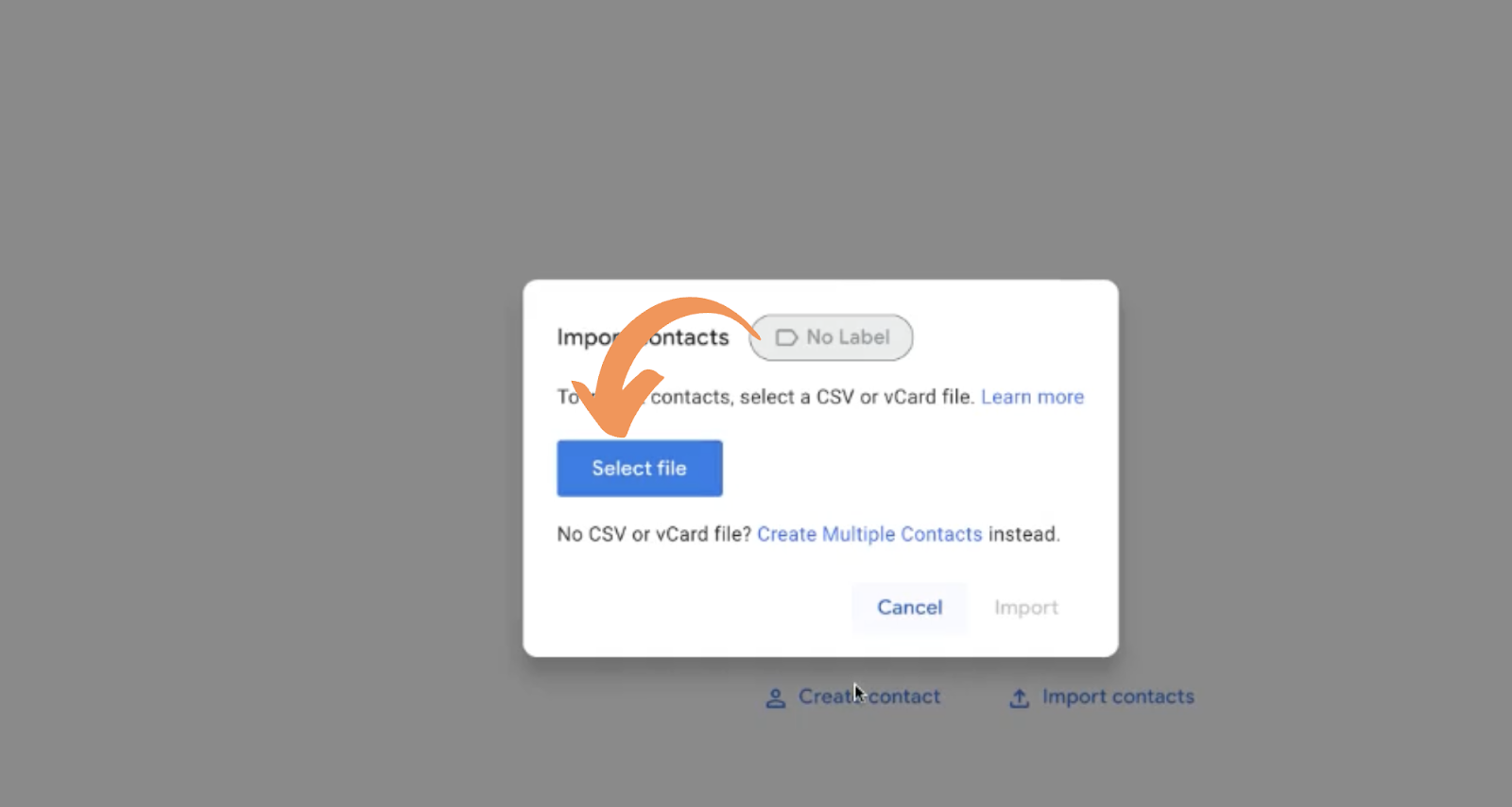
Select the CSV file you downloaded by clicking the Select file button.
Screenshot showing the file selection popup.
Create a label to name the contact list. This makes it easier to delete later if you don't want to save them permanently.
Screenshot showing how to create a label.
Click the Import button to complete the upload.
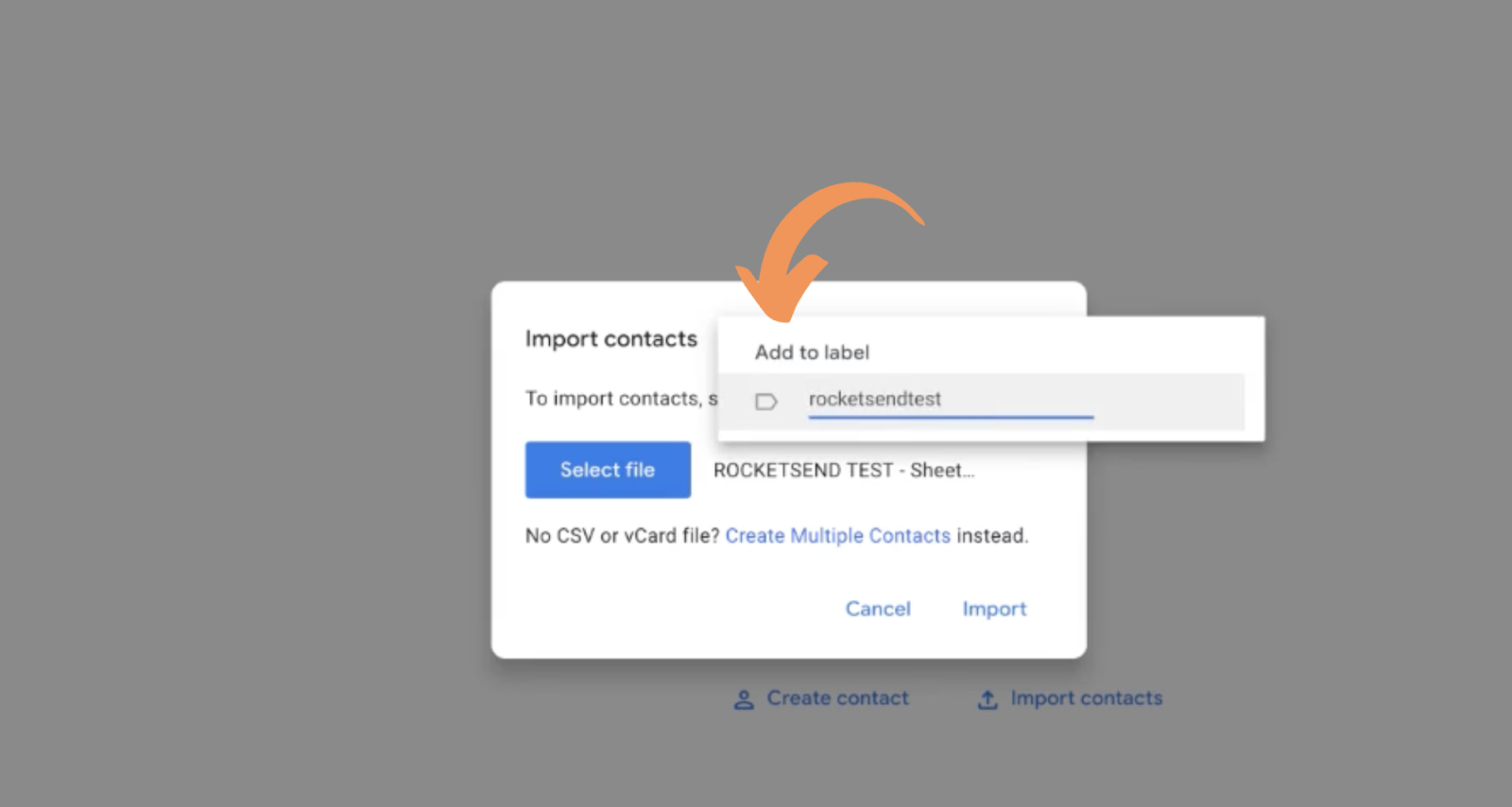
Screenshot showing the import button to finalize.
Check The Contacts Sync
Next, verify that contacts are properly syncing from Google Contacts to WhatsApp.
For Android:
Go to Settings > Accounts > Manage Accounts and check the Google account where you uploaded the contacts.
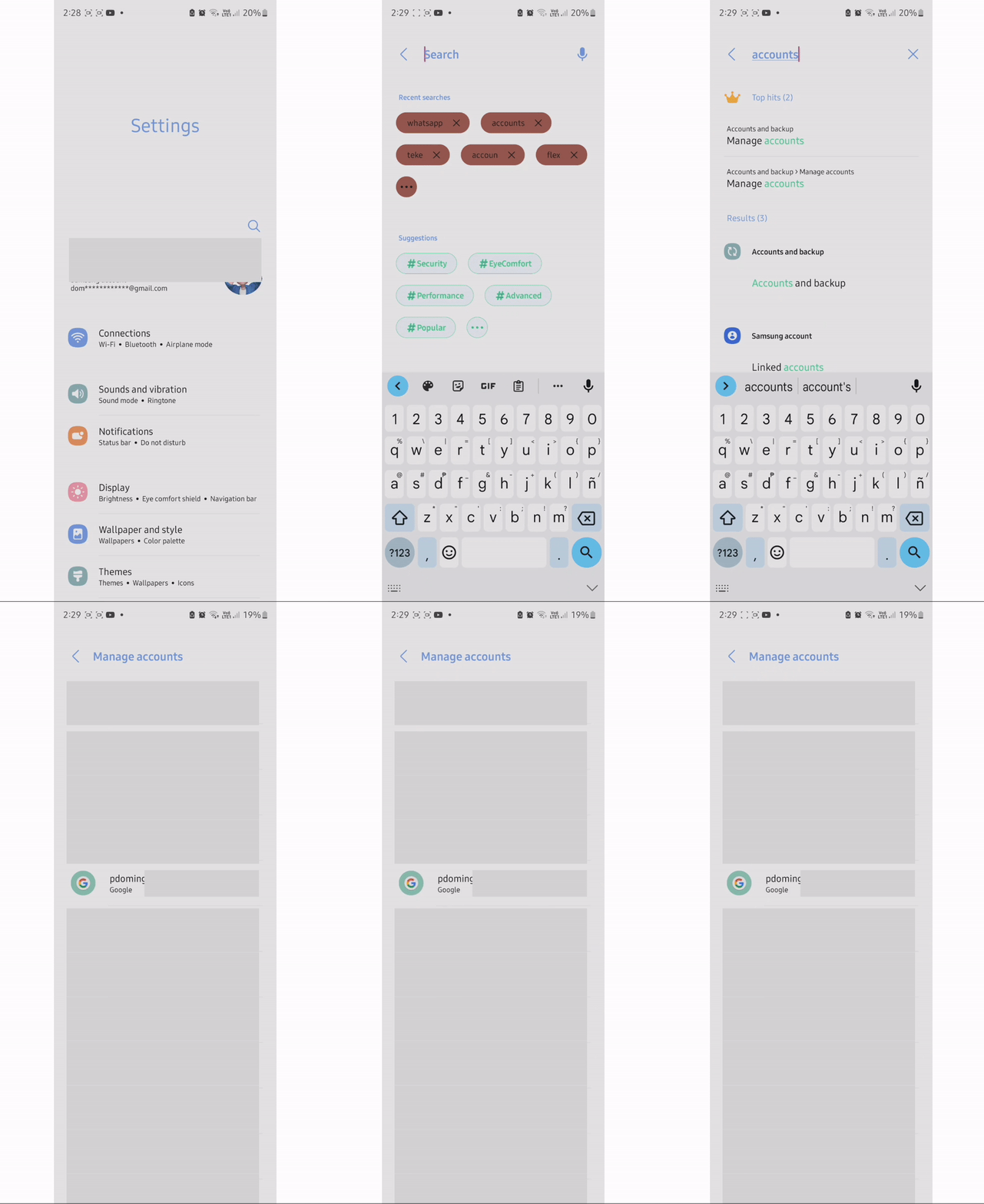
GIF showing how to check contacts sync on Android.
Also check that WhatsApp has access to contacts: Settings > WhatsApp > Permissions and ensure Contacts is "Allowed".
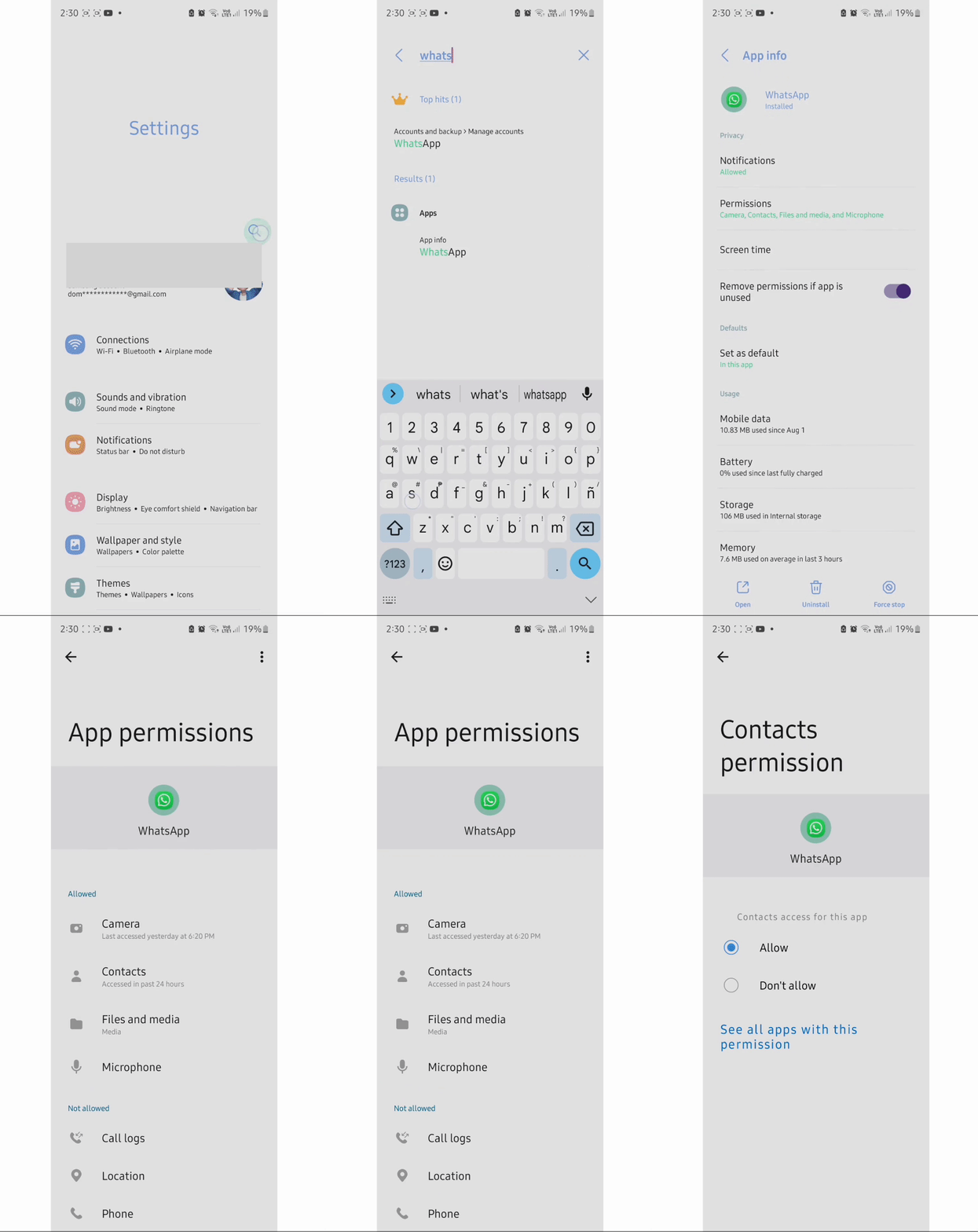
GIF showing how to check WhatsApp contacts permission.
For iOS:
Open Settings > Contacts > Accounts and check that syncing for the Google account is enabled. Then verify WhatsApp permissions in Settings > WhatsApp > Allow WhatsApp To Access.
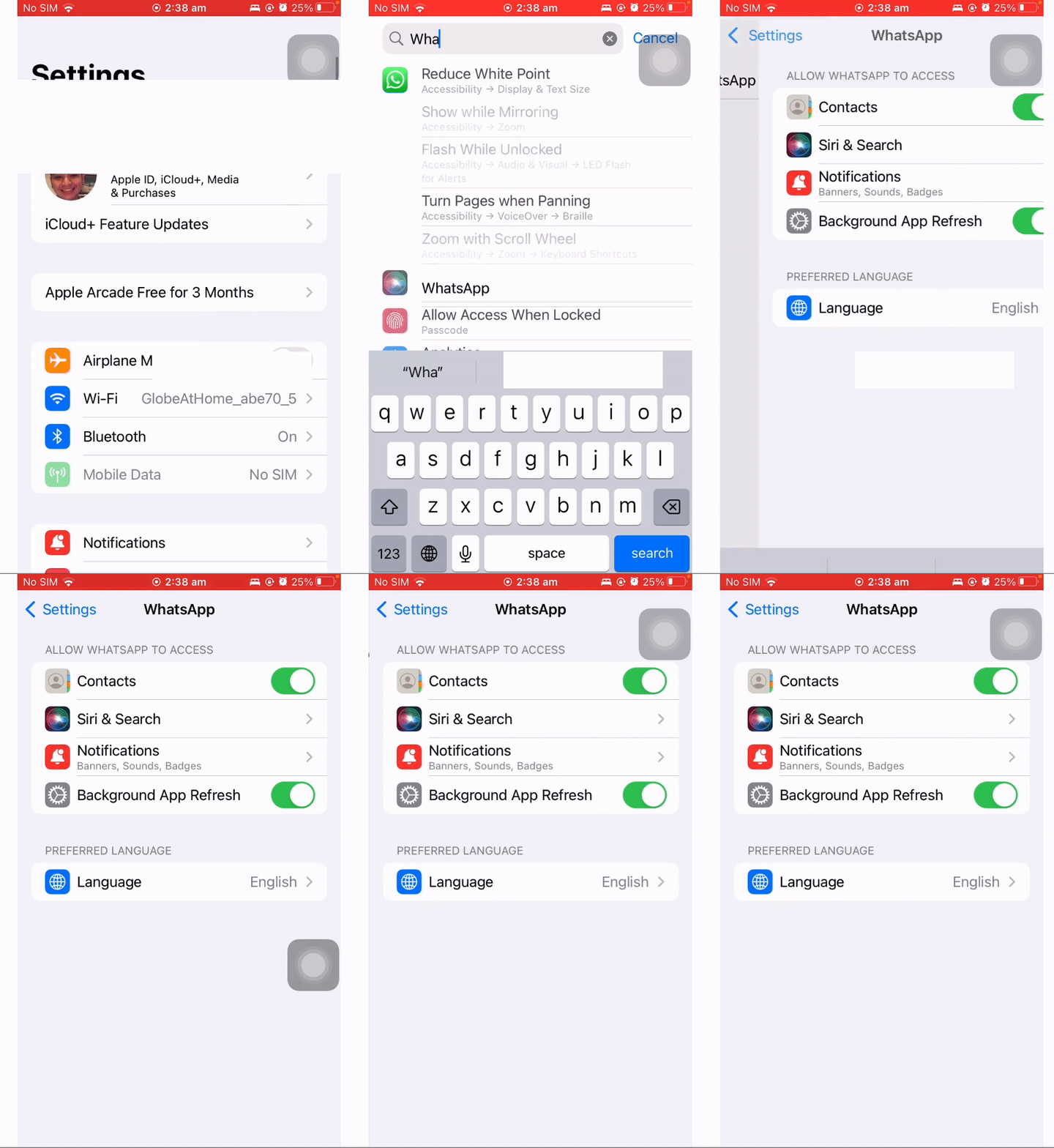
GIF showing iOS contacts permissions settings.
To verify the import was successful, search for the contact in WhatsApp Web. Go to web.whatsapp.com, click New Message, and search for the contact.
Screenshot showing how to verify contacts in WhatsApp Web.
Send The Message Using WaWebM
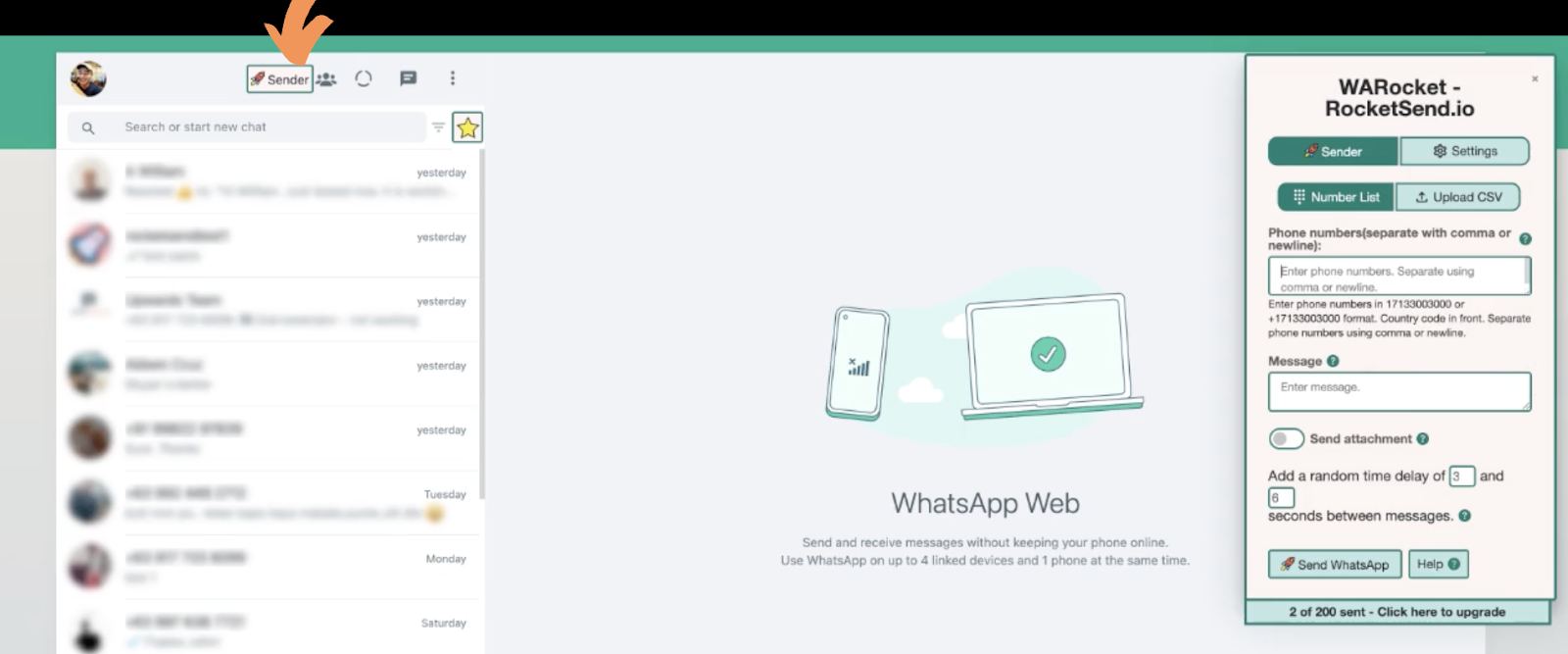
Now that everything is set, you can send your message using WaWebM. Go to web.whatsapp.com, click the Sender button, and the WaWebM pane will appear on the right side.
Screenshot showing where to click to open WaWebM.
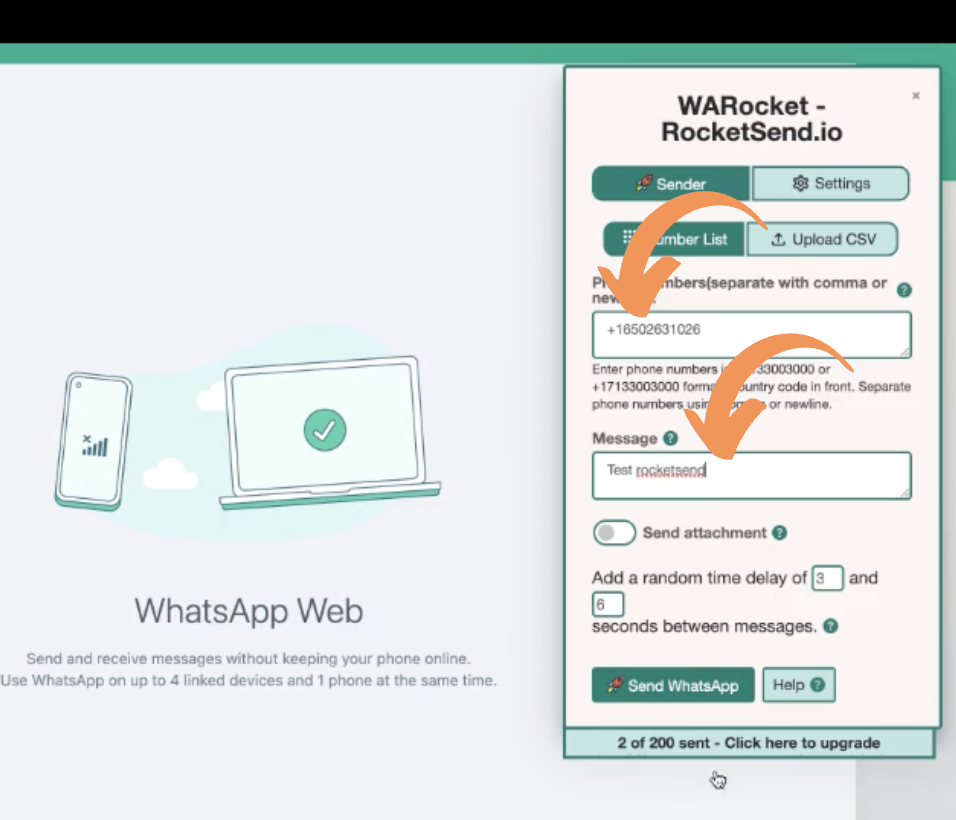
Enter the number in the Phone Numbers field and your message in the Message field.
Screenshot showing a sample message.
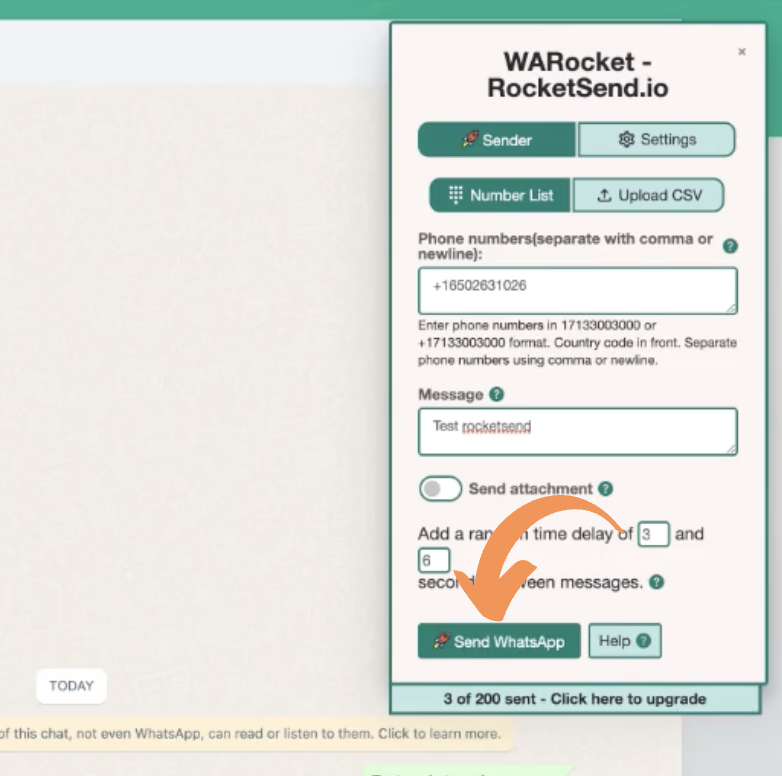
Click the Send WhatsApp button and you're done!
Screenshot showing the Send WhatsApp button.
Optional: Delete The Contact List
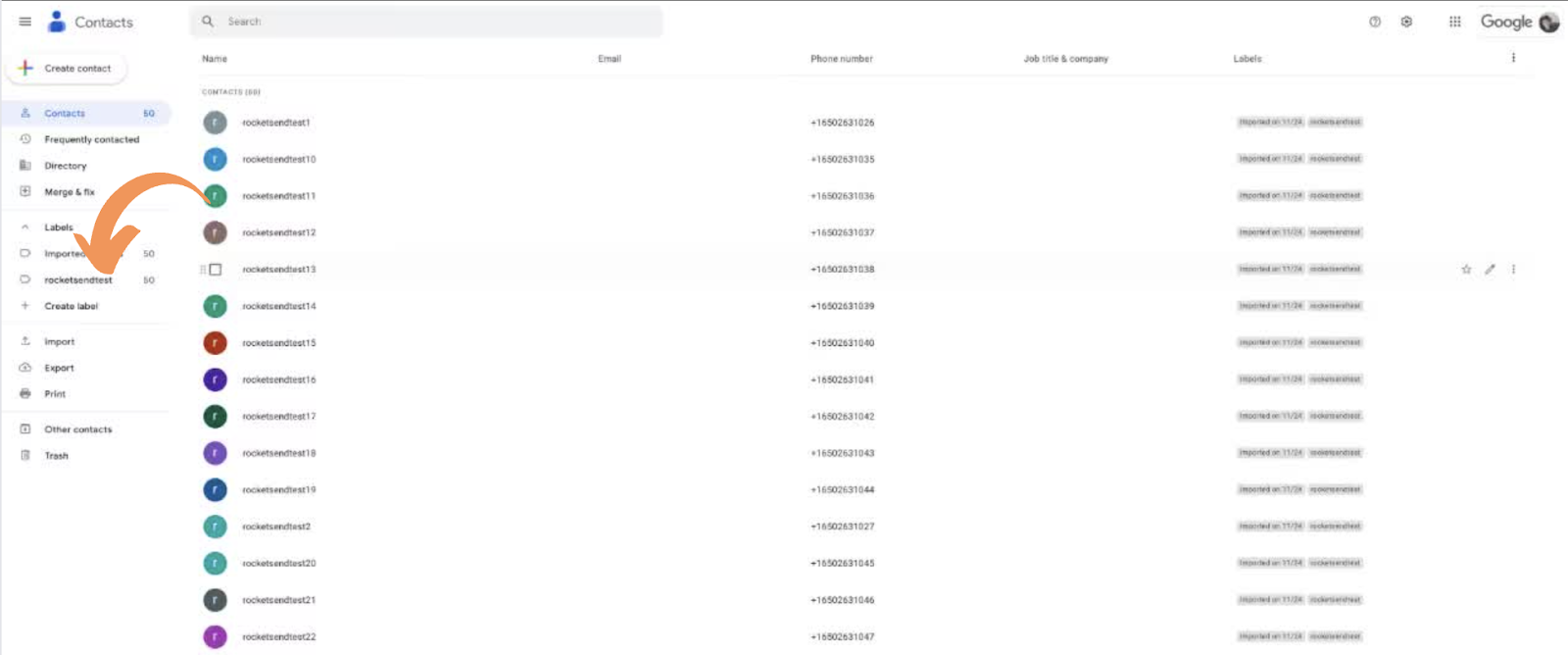
If you don't want to save the contacts permanently, go to contacts.google.com and find the label you created earlier.
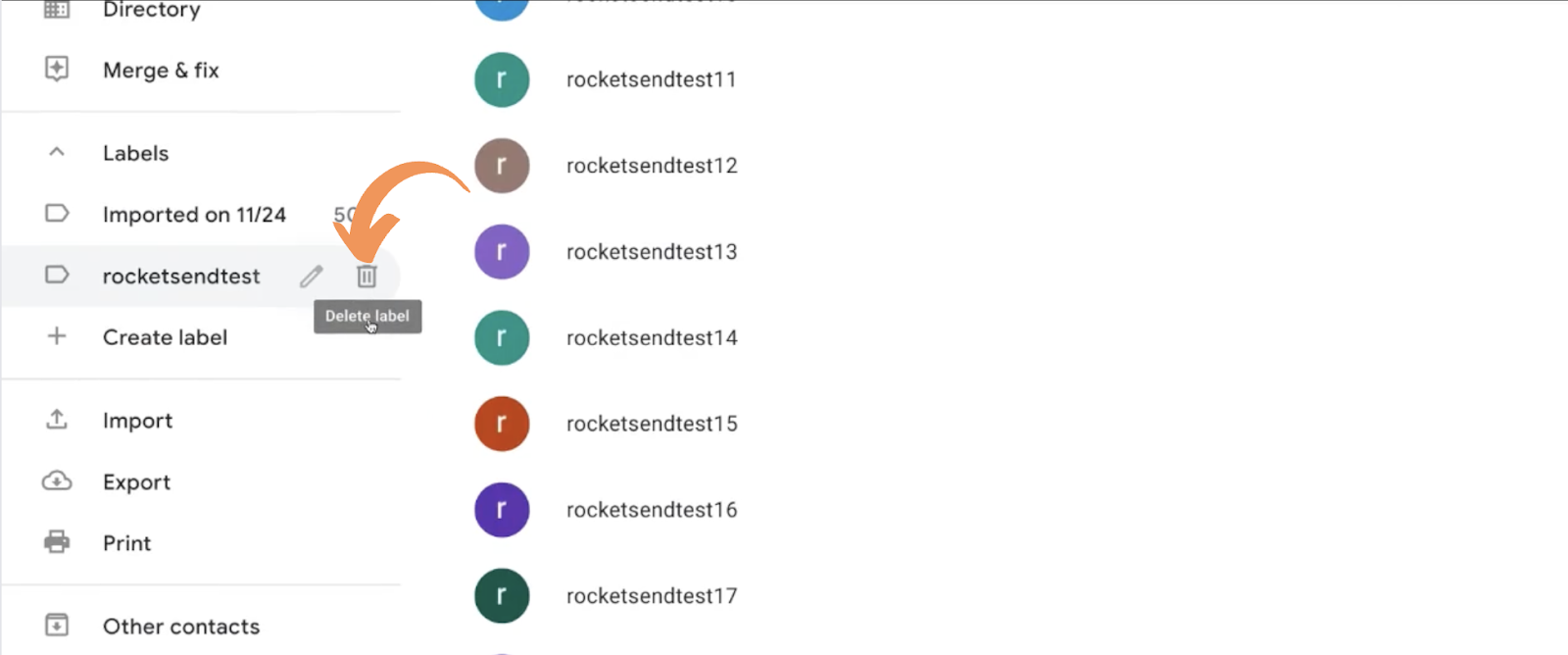
Screenshot showing where to find the contact label.
Click the Trash icon to delete all contacts associated with the label. Choose "Delete all contacts and delete this label" to remove everything.
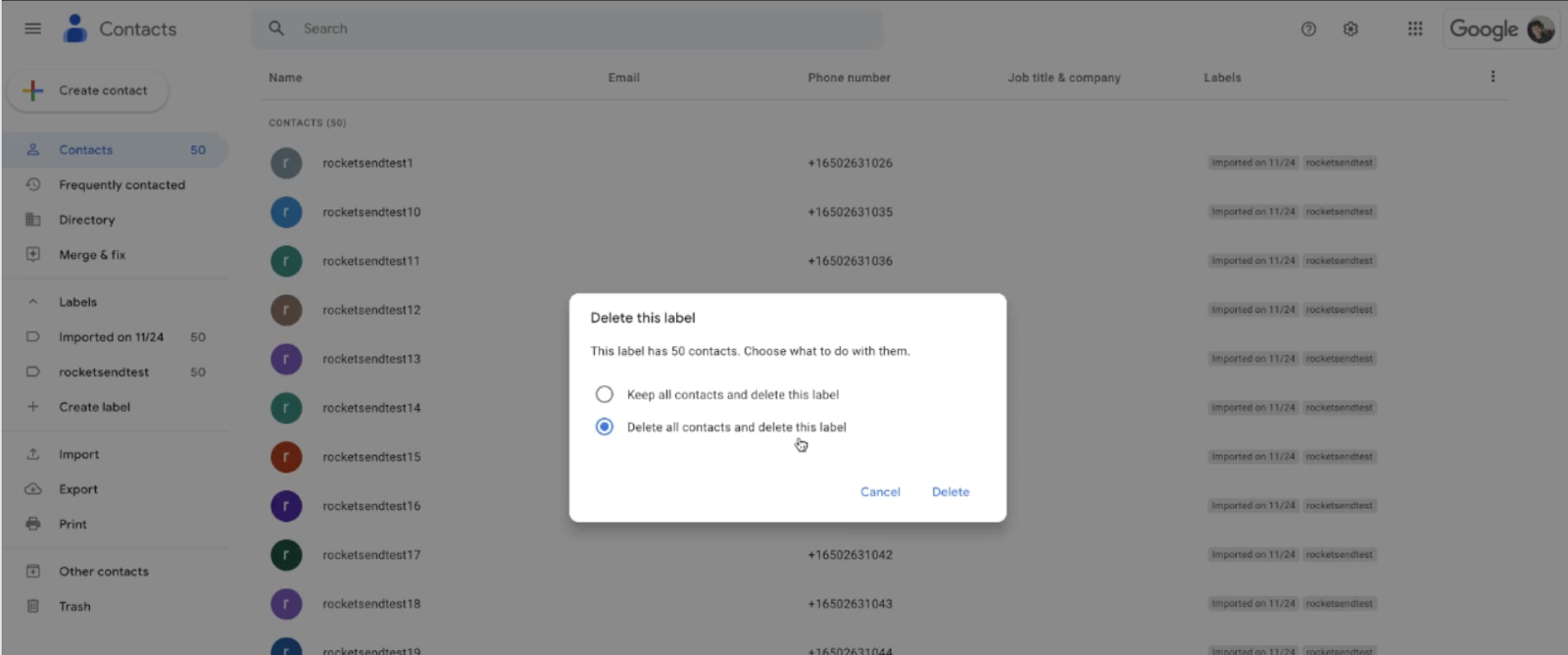
Screenshot showing the delete confirmation popup.
Why Use This Feature?
Getting 'Phone number shared via url is invalid' errors? Here's how to fix them.
Fix Broken Links
Correct wa.me link formatting instantly.
Auto-Format
WaWebM cleans numbers automatically (removes spaces, dashes).
Country Code Detection
Automatically detect and add missing country codes to phone numbers.
Validation
Verify numbers exist before sending.
Complete WhatsApp Messaging Features
Experience the most comprehensive AI-powered WhatsApp messaging solution with enterprise-grade features and intuitive design
AI Message Rewrite
Transform your messages with AI-powered rewrite technology. Choose from professional, friendly, urgent, or casual tones to optimize engagement with WaWebM's advanced AI.
AI Content Generation
Generate compelling messages from simple prompts using WaWebM's AI content assistant. Create professional, engaging content in seconds.
CSV Contact Upload
Upload your contact list from Excel or CSV files and send personalized messages to thousands of contacts simultaneously with WaWebM's advanced messaging capabilities.
Message Personalization
Customize messages with recipient names, company information, and any custom fields from your contact list using WaWebM's personalization engine.
Quick Chat Snippets
Save and quickly access your most commonly used messages with WaWebM's advanced snippet system for improved efficiency.
Privacy Protection
Keep your messages private with blur view, unread message highlights, and other privacy features built into WaWebM for enhanced security.
Send Without Adding Contact
Send WhatsApp messages to any phone number without saving it to your contacts first. Perfect for one-time messages and customer support.
Attachment Sending
Send images, PDFs, documents, and other files to multiple contacts at once. Great for sending catalogs, invoices, or promotional materials.
Chrome Extension
Works seamlessly with WhatsApp Web as a Chrome extension. No separate app or login required - everything works right in your browser.
Conclusion
And that's it! That is how you do the workaround whenever you are encountering the "Phone Number Shared via URL Invalid" issue in WhatsApp Web.
Note that you can upload all your contacts in one go to save time. You don't have to re-upload contact lists every time.